How to View Instagram Stories on PC or Mac (No App Required)
Instagram has a desktop website, but if you’ve spent any time trying to use it for story browsing, you’ve probably noticed how little it actually offers. You can scroll posts, send DMs, and look at profiles well enough — but when it comes to actively browsing stories the same way you would on mobile, the desktop experience falls apart quickly.
The fix is simple: a dedicated browser-based story viewer that works on any computer, doesn’t require an account, and keeps your viewing completely anonymous.
Why Instagram on Desktop Is Limited
Open instagram.com in Chrome or Safari on a PC or Mac and you’ll find a reasonably functional interface for the basics: scrolling your feed, visiting profiles, viewing posts and reels. Stories from accounts you follow do appear as circles at the top of your feed — so if you’re already logged in, you can tap through them.
But here’s where the desktop version falls short for most use cases:
- You have to be logged in. There’s no way to browse stories from a specific public account on instagram.com without a login.
- No profile-level story search. You can’t type a username, pull up their profile, and see their active stories directly. You’d need to find the account, check if they have a story circle, and tap it — all while logged into your own account.
- Your views are recorded. Every story you open through instagram.com while logged in will show your username to the story owner.
- No download option. Instagram’s desktop site provides no built-in way to save story content.
For casual browsing this might be fine. For research, monitoring, or anonymous viewing, it’s a dead end.
The Solution: IncoStory Online Viewer
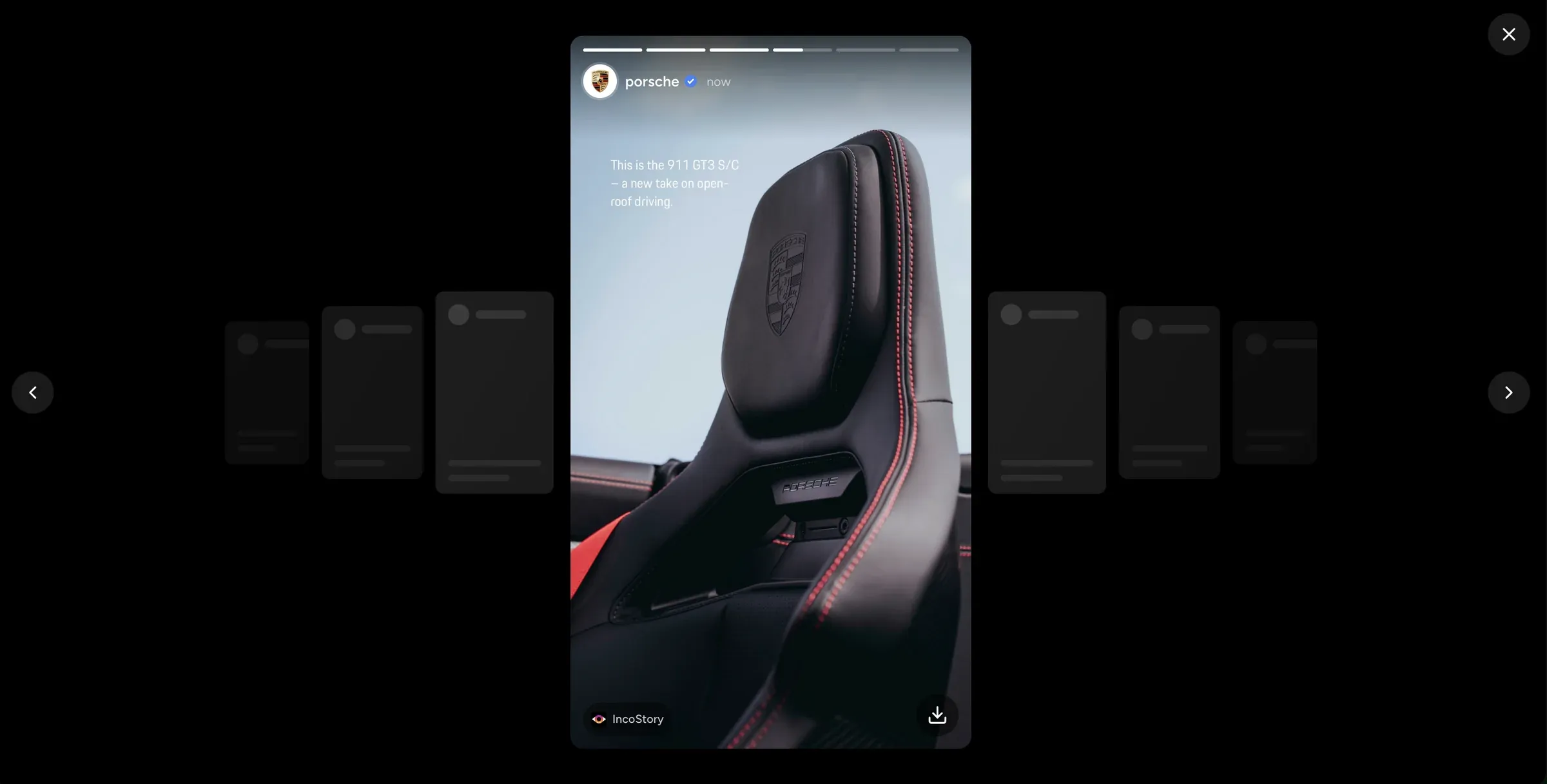
The IncoStory Online Viewer is a free, browser-based story viewer that runs directly on your computer — no software to install, no Instagram login required. You just open it in a browser tab and start searching.
Because it fetches story content through its own backend rather than through your Instagram session, the IncoStory Online Viewer doesn’t appear in story viewers lists. The account owner sees no trace of your visit. You’re browsing with full anonymity.
It works on Windows, Mac, Linux, and Chromebooks — any machine with a modern browser. There’s no operating system dependency and nothing to configure. Open the tab, use the tool, close it when you’re done.
The IncoStory Online Viewer also handles both stories and Highlights from public profiles, so it replaces the desktop Instagram experience for story content entirely — and then some.
Step-by-Step: Watch Stories on Mac or Windows
Getting started takes about 30 seconds:
-
Open any browser on your computer. Chrome, Firefox, Safari, Edge — all work equally well. No browser extensions or plugins are needed.
-
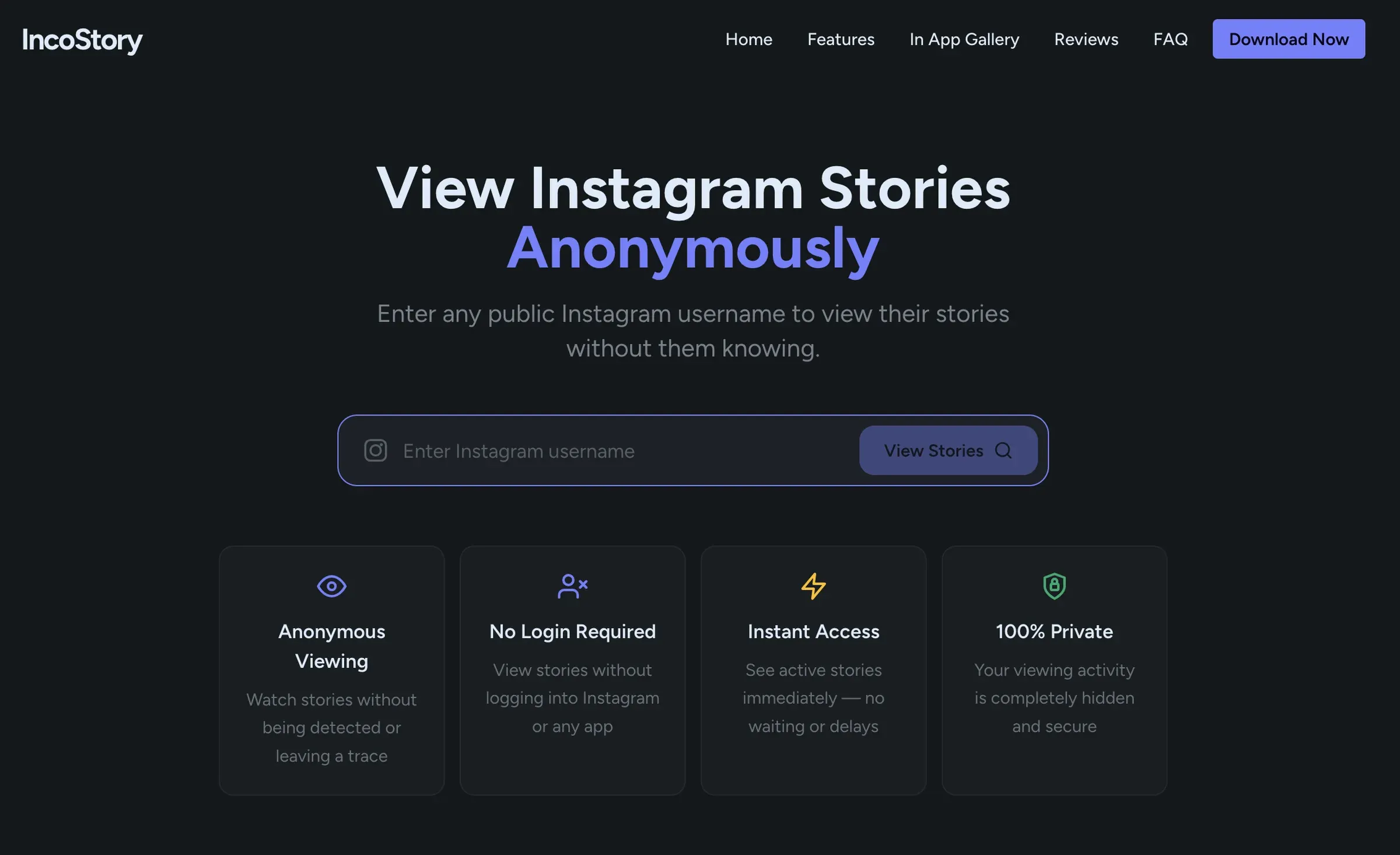
Go to the IncoStory Online Viewer at incostory.com/instagram-story-viewer. The page loads immediately with a clean search interface.
-
Type the Instagram username you want to check into the search field and hit Enter (or click the search icon). IncoStory will fetch that account’s current stories and any available Highlights.
-
Watch the stories. Click through them the same way you would on mobile — they play in sequence, you can pause, and you can jump between them. Everything is shown in full resolution right in the browser tab.
That’s it. No account creation, no email address, no payment information. The tool is free and the search results are immediate.
Can You Download Stories from PC?
Yes. Every story displayed in the IncoStory Online Viewer has a download button. Click it to save the photo or video file directly to your computer. The file lands in your browser’s default download folder — usually your Downloads directory — with no additional steps required.
For photos, you can also right-click the story and use your browser’s native “Save image as” option if you prefer. For video stories, the one-click download button is the cleaner route.
Downloaded files are in their original quality as uploaded to Instagram — full 1080×1920 resolution for photos and video. There’s no compression or quality loss introduced by the viewer.
If you need to save a large batch of stories rather than picking through them one at a time, the IncoStory mobile app supports bulk download in a single tap. But for desktop use cases — grabbing a specific clip, saving a screenshot, archiving a few posts from a public account — the per-story download in the web viewer is more than sufficient.
What About Private Accounts?
The IncoStory Online Viewer works with public Instagram profiles only. If you type in a username that belongs to a private account, no stories will appear — because Instagram doesn’t expose private content to unauthenticated requests.
For private accounts, you’d need to be following that account on Instagram and use the IncoStory mobile app instead. The app lets you log in with your Instagram credentials, which gives it access to stories from accounts your own profile already follows. The key difference is that IncoStory still keeps your view anonymous — your username won’t show up in the story viewers list, even though you’re accessing private content you legitimately have permission to see.
If you only need stories from public profiles — businesses, creators, journalists, public figures — the web viewer covers every case.
Why Desktop Viewing Is Better
There are real advantages to watching Instagram stories on a computer rather than a phone, beyond just fixing Instagram’s own limitations:
Bigger screen. A 15-inch laptop or a desktop monitor makes story content significantly easier to read and evaluate. Text overlays, small product shots, fine print in sponsored content — all of it is easier to see when you’re not squinting at a 6-inch phone display.
Multitasking. On a computer, you can have the story viewer in one tab and a document, spreadsheet, or email thread in another. If you’re doing competitive research or content analysis, being able to cross-reference in real time without switching apps is a genuine workflow improvement.
Easier capture. Screenshots on a desktop are more flexible than on mobile. You can use native screenshot tools (Snipping Tool on Windows, Command+Shift+4 on Mac) to capture specific parts of a story, paste directly into documents, or use screen recording tools to capture video stories without the overhead of getting media off your phone.
No mobile data usage. If you’re burning through a data plan on mobile, desktop browsing over Wi-Fi is just more efficient for extended research sessions.
FAQ
Does it work on Linux?
Yes. The IncoStory Online Viewer is a web application with no operating system requirements. Any Linux machine with a modern browser — Chrome, Firefox, Chromium — will work without any additional setup.
Does it work in any browser?
It works in all major modern browsers: Chrome, Firefox, Safari, Edge, Brave, Opera. No browser extensions are required and there are no known compatibility issues with current browser versions. Older browsers (anything that predates full ES6 support) might have issues, but that covers essentially nothing in active use today.
Is the viewing anonymous?
Yes. The IncoStory Online Viewer retrieves story content without routing the request through your Instagram account. The profile owner’s story viewers list will not include your name or any identifier tied to you. This is the same anonymity model described in more detail in the full guide to anonymous Instagram story viewing.
Is it free?
The web viewer is completely free with no registration required. There are no paywalled features for basic story browsing and downloads. IncoStory also offers a mobile app with a free tier if you want bookmarks, private account support, and other advanced features.
Does it work in mobile browsers too?
Yes. Even though this guide focuses on PC and Mac, the IncoStory Online Viewer is fully responsive and works in mobile browsers on iPhone and Android as well. So if you ever want the browser-based approach on your phone without installing the app, it works the same way.
For anyone who’s been frustrated by Instagram’s desktop limitations, the IncoStory Online Viewer is the most direct solution: open a browser tab, search a username, and watch stories without an account, without an install, and without being seen. If you want to compare it against other story viewing tools, the IncoStory vs StoriesIG breakdown covers the key differences in detail. And if you’re ready to try the full IncoStory experience beyond the browser, the IncoStory app is where bulk downloads, bookmarks, and private account access live.

View Instagram Stories Anonymously
Right in your browser, no login needed. Or get the app for unlimited viewing and downloads.
★ 4.9 · 250K+ users