How to Repost Someone's Instagram Story (3 Methods for 2026)
Sharing someone else’s Instagram story is one of the most common things people want to do — and one of the most inconsistently documented. Instagram’s native sharing options depend heavily on whether you were mentioned in the story, and the interface changes often enough that guides go stale fast. This one covers what actually works in 2026, including a method that works even when you weren’t tagged.
Why Repost a Story?
Reposting a story is useful in more situations than you might think. Brands re-share customer testimonials and user-generated content. Event organizers amplify coverage from attendees. Friends re-share funny moments or shoutouts. Creators build engagement by sharing posts that mentioned or tagged them.
Whatever the reason, the method you’ll use depends on one key factor: did the original poster mention or tag you in their story?
Method 1: When You’re Mentioned (The Easiest Way)
If someone tags you in their story, Instagram gives you a direct, native way to re-share it. This is the cleanest option because it includes the original content and automatically credits the poster.
Here’s what to do:
- Open your DM inbox. When someone mentions you in a story, Instagram sends you a notification and a direct message showing the story frame.
- Tap the story preview in your DMs. You’ll see the frame as it appeared in their story.
- Tap “Add to Your Story.” This button appears below the preview. It adds the story frame — with the original poster’s username overlaid — directly to your own story.
- Customize if you want. Before posting, you can add stickers, text, or other elements on top of the shared frame. The original content remains intact underneath.
- Post your story. Your followers will see the re-shared frame with a tag back to the original poster.
One important detail: this option is only available for 24 hours after the story is posted. Once the original story expires, the “Add to Your Story” button disappears from your DMs.
Method 2: The “Add Yours” Sticker and Story Chains
Instagram’s “Add Yours” sticker creates a public story chain around a specific prompt or theme. If someone used an “Add Yours” sticker in their story, you can tap it to contribute your own response — effectively joining the thread.
This isn’t a traditional repost, but it’s a native way to participate in and amplify story content around a shared topic. Tap the sticker in someone’s story, and Instagram opens a new story composer where you can post your own version linked to the same chain. Your contribution shows up alongside theirs in the public thread.
Instagram has also experimented with a direct story-sharing button (the paper-plane icon) that lets you forward specific stories to your own story even without a mention. Availability varies by account and region, so check whether you see this option on the stories in your feed.
Method 3: Screenshot and Post Manually
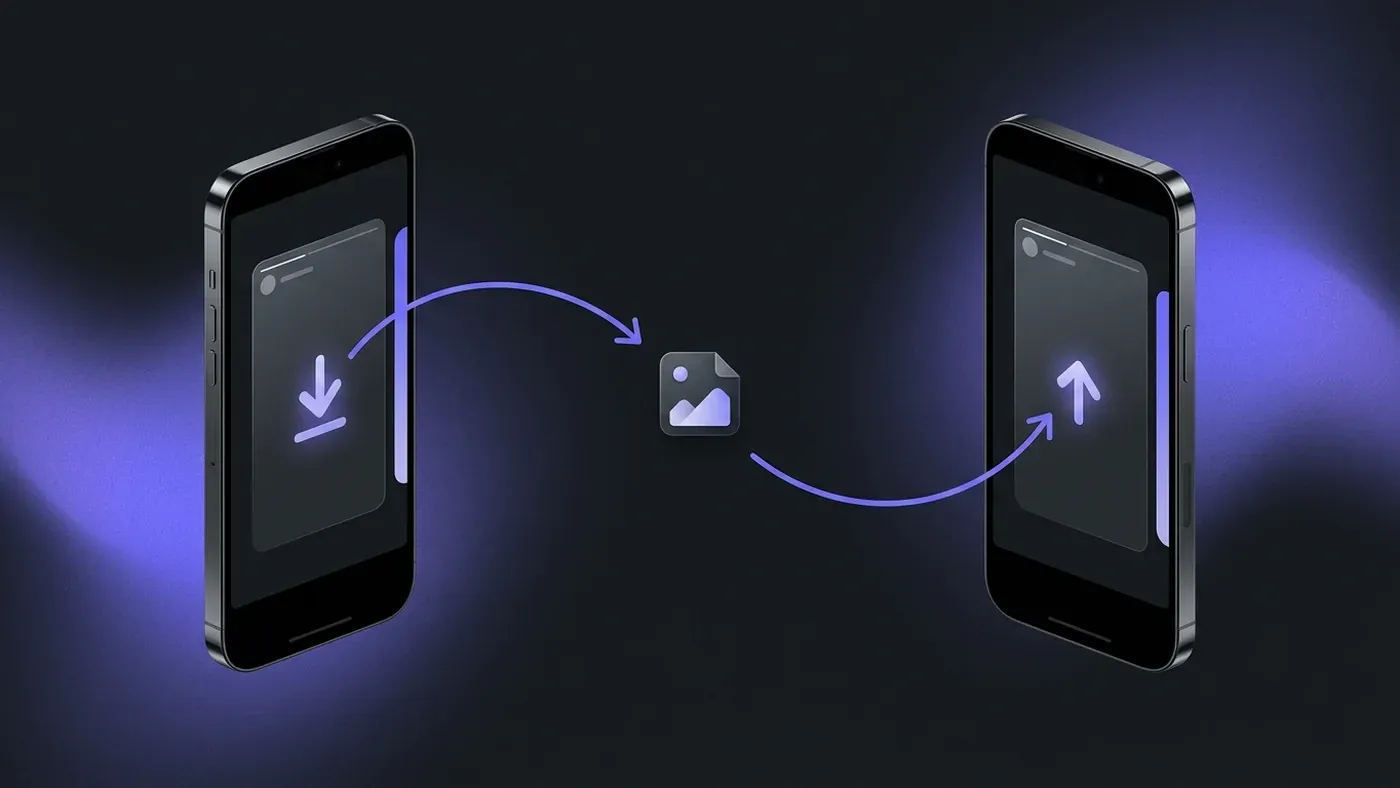
When you’re not mentioned and neither of the native options above is available, this is the reliable fallback. It’s manual, but it works every time for public content.
- Take a screenshot of the story frame you want to re-share. On most devices: volume-down + power button simultaneously, or use your device’s screenshot shortcut.
- Open Instagram and start a new story. Tap the camera icon or swipe right from the feed.
- Upload the screenshot as your story background. Tap the gallery icon in the lower-left and select the screenshot.
- Add credit. This is non-negotiable from an etiquette standpoint (more on this below). Add a text sticker or use the mention sticker to tag the original poster’s username.
- Post your story.
A few things to keep in mind: screenshots capture exactly what was on your screen, including your own UI elements if you’re not careful. Before screenshotting, make sure the story is in full-screen view with no overlapping notifications. Some creators also add visible watermarks to their content to discourage uncredited reposting.
Method 4: Download the Story First, Then Repost
If you want to repost a story with better quality than a screenshot allows — or if you want to save it first and post it to your feed rather than your story — downloading the original file first is the better approach.
Tools like the IncoStory Online Viewer let you view and download stories from public accounts directly in your browser. The downloaded file is the original media, not a screenshot, so it retains full quality. This matters most for video stories, where screenshots only capture a single frame.
Once you have the file:
- Open Instagram and navigate to the ”+” button to create a new post or story.
- Select the downloaded file from your camera roll.
- Add your caption, tags, and credits before posting.
For situations where you want to save multiple stories from an account — such as gathering content from a brand collaboration or event — our bulk story download guide covers the most efficient approach.
Credit Etiquette: Always Tag the Original Creator
Reposting without credit is one of the quickest ways to damage your reputation on Instagram. Beyond the etiquette angle, it can also lead to your post being reported and removed.
The standard practice is to use Instagram’s mention sticker or a @username text tag in your re-shared story. This links back to the original creator and gives them visibility from your audience. Most creators appreciate the exposure — and it protects you if anyone questions the source of the content.
If the creator has explicitly asked not to be reposted (some put this in their bio), respect that. When in doubt, send them a DM to ask permission before sharing. This is especially important for personal content rather than promotional material.
FAQ
Can I repost someone’s story without their permission?
Technically yes, for public accounts. But Instagram’s Community Guidelines require crediting original creators, and sharing without permission can still lead to reports and content removal. For anything beyond a casual re-share between friends, asking first is the right move.
Will the person whose story I reposted know about it?
If you use the native mention-based share, Instagram may notify them. If you screenshot and repost manually, they won’t receive a direct notification — but they may see your story if they visit your profile or come across it organically. Instagram does not send a separate alert for screenshot-based reposts.
Can I repost an Instagram story to my feed (not just my story)?
Not natively. Instagram’s built-in repost options only add content to your story, not your feed. To post it to your feed, you need to download the media first (using the method in Method 4 above) and then upload it as a new feed post.
Can I repost a story that includes music?
Stories with music stickers are the trickiest. If you screenshot and repost, the music is lost entirely. If you download the story video first, the audio may be included depending on the tool and the specific track. Note that reposting copyrighted music without appropriate licensing can lead to your post being muted or removed by Instagram’s audio detection system.
What if the story has already expired before I try to repost it?
Once a story expires, you can no longer access it through Instagram’s native interface. However, if the original poster has their archive enabled, the story exists in their personal archive — but only they can see it. If you want to save stories before they expire for later reposting, download them while they’re still live using a tool like the IncoStory Online Viewer.
Reposting Instagram stories comes down to knowing which method fits your situation. Native sharing works beautifully when you’re mentioned. Screenshots handle everything else in a pinch. And downloading the original file first gives you the most flexibility for feed posts and high-quality reposts. Just remember to credit the creator — your audience and the original poster will both appreciate it. For a full look at what IncoStory can do beyond story downloading, see the IncoStory features overview.

View Instagram Stories Anonymously
Right in your browser, no login needed. Or get the app for unlimited viewing and downloads.
★ 4.9 · 250K+ users