How to Add Music to Your Instagram Story (Sticker + Camera)
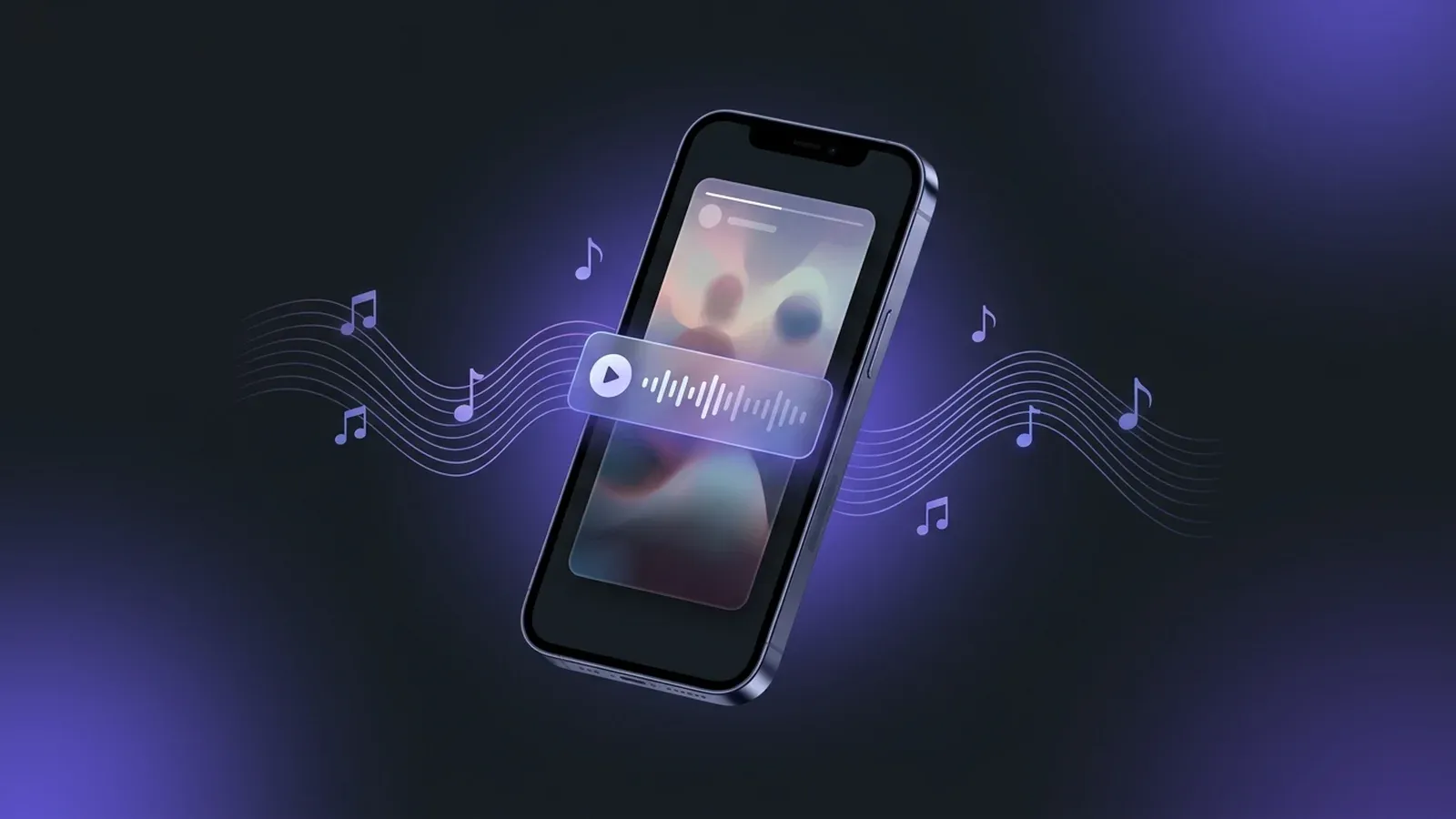
Music changes what a story feels like. A time-lapse of a city skyline is just footage without it; add the right track and it becomes a mood. A birthday photo with song lyrics floating across it lands differently than the same photo without. Instagram has built a surprisingly capable native music tool into stories — the Music sticker — and it requires no third-party app, no audio editing, and no audio engineering skills.
Here’s how to use it, what the different display options look like, and what to do when the music you want isn’t available.
Method 1: Music Sticker (Most Common)
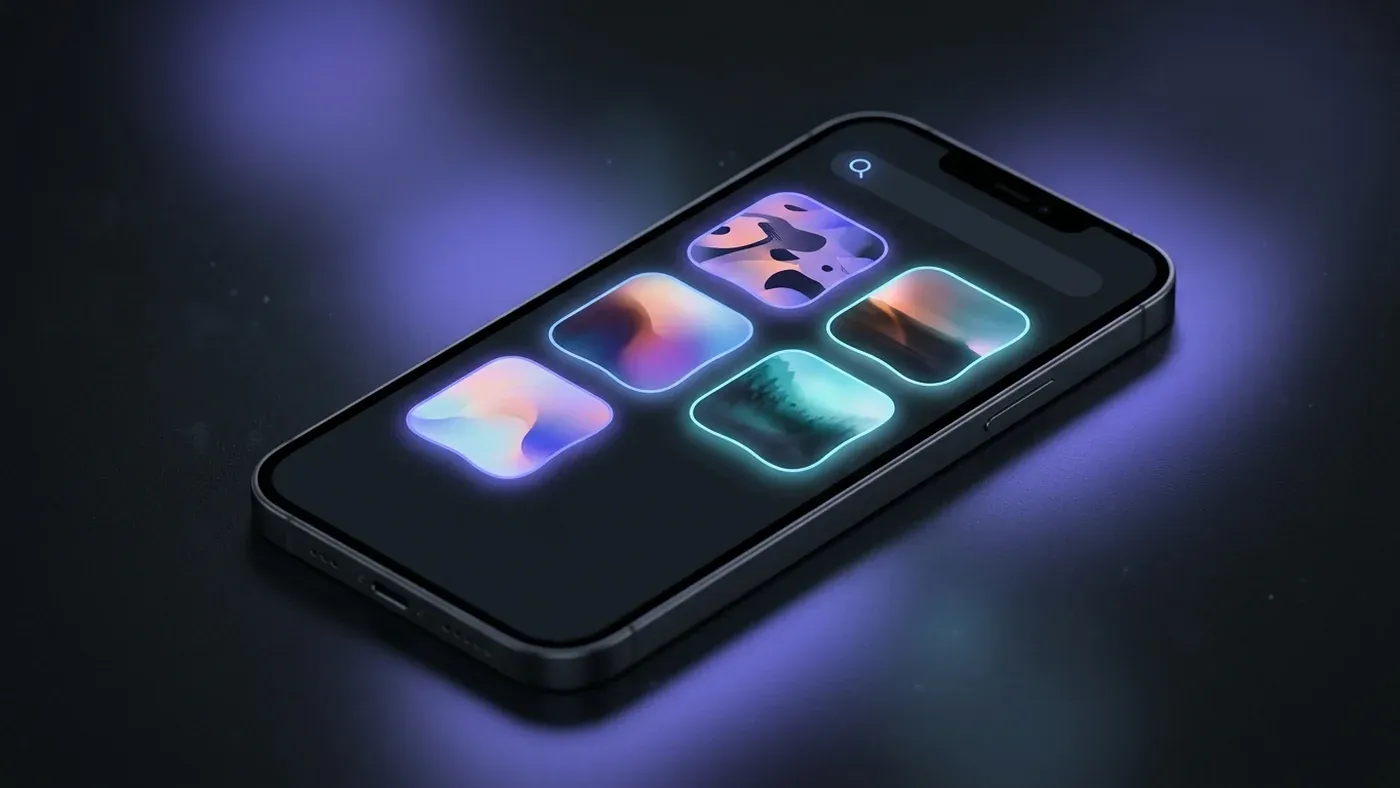
The Music sticker is the standard way to add a song to any story you create or upload from your camera roll. It pulls from Instagram’s licensed music library, which spans millions of tracks across every genre — mainstream pop, hip-hop, indie, classical, lo-fi, film scores, and more.
Step 1 — Create or upload your story content. Open the story camera (tap your profile photo in the feed or swipe right). Take a photo or video, or tap the gallery icon to select something from your camera roll.
Step 2 — Open the sticker tray. Tap the sticker icon in the top toolbar after your content is loaded onto the canvas.
Step 3 — Tap the Music sticker. It’s usually near the top of the sticker tray. Tap it to open the music browser.
Step 4 — Find your track. You have several ways to browse: a search bar for specific songs or artists, curated categories (Popular, Moods, Decades, Genres), and a “Recommended” tab that Instagram populates based on your listening and viewing habits. Type in a song title, an artist name, or browse until something fits.
Step 5 — Choose a segment. After selecting a track, a waveform scrubber appears at the bottom of the screen. Stories can include up to 15 seconds of audio. Drag the scrubber to pick which 15-second section of the song plays — the chorus, a key instrumental break, the opening verse, whatever works for your content. Instagram shows a preview as you drag.
Step 6 — Confirm and place the sticker. Tap Done and the Music sticker appears on your canvas. You can move it, resize it, and choose its display style (covered in a section below). Share when ready.
One thing to know: the Music sticker works on photos and videos, but behavior differs slightly. On a photo, Instagram displays the story for the length of the audio segment you selected (up to 15 seconds). On a video, the audio plays alongside your clip’s audio — you can adjust the relative volume between your original audio and the music track in the audio mix settings that appear after adding the sticker.
Method 2: Add Music from Camera Roll Video
If you record a video outside of Instagram — with your phone’s native camera app, for example — and upload it to your story, you may want to keep the audio from the original clip rather than add a separate music track over it. That’s fine; Instagram doesn’t force you to add a Music sticker.
But there’s also a middle option: Instagram lets you add a music track to uploaded videos, layering it on top of (or replacing) the original audio. The process is the same as Method 1 — upload your clip, add the Music sticker, pick your track and segment. From the audio controls that appear, you can then decide how loudly the music plays versus your original audio. Slide the mix entirely toward music if you want to replace your video’s sound; split it evenly if you want both to coexist.
This is particularly useful if you filmed something with noisy background audio — crowd noise at an event, wind, ambient rumble — and want to replace it with something cleaner from the music library.
Picking the Right Segment
The 15-second clip you select from a track matters more than the track choice itself in many cases. A recognizable song that viewers only hear in its least recognizable eight-bar section won’t land the same as one that starts on the hook. A few tips:
Use the search and preview together. When you search for a track, each result has a play button. Tap it to hear a quick preview before selecting the track, so you’re not scrubbing blind.
For energetic content, find the peak. High-energy videos — sports clips, dancing, reveals — generally work best with the most kinetic section of the song, usually a chorus or drop.
For quieter, mood-setting stories, the intro often works better. Slow-burn instrumentals and ambient music tend to have their best sections in the first 30 seconds. Dragging to later in the track can sometimes hit a part that’s too loud or too busy.
Match the energy curve. If your video builds toward something, try to find a 15-second section where the song also builds. Synchronizing the audio arc to the visual arc creates cohesion that viewers feel even if they can’t articulate why.
Display Options: Lyrics vs Cover Art vs Minimal
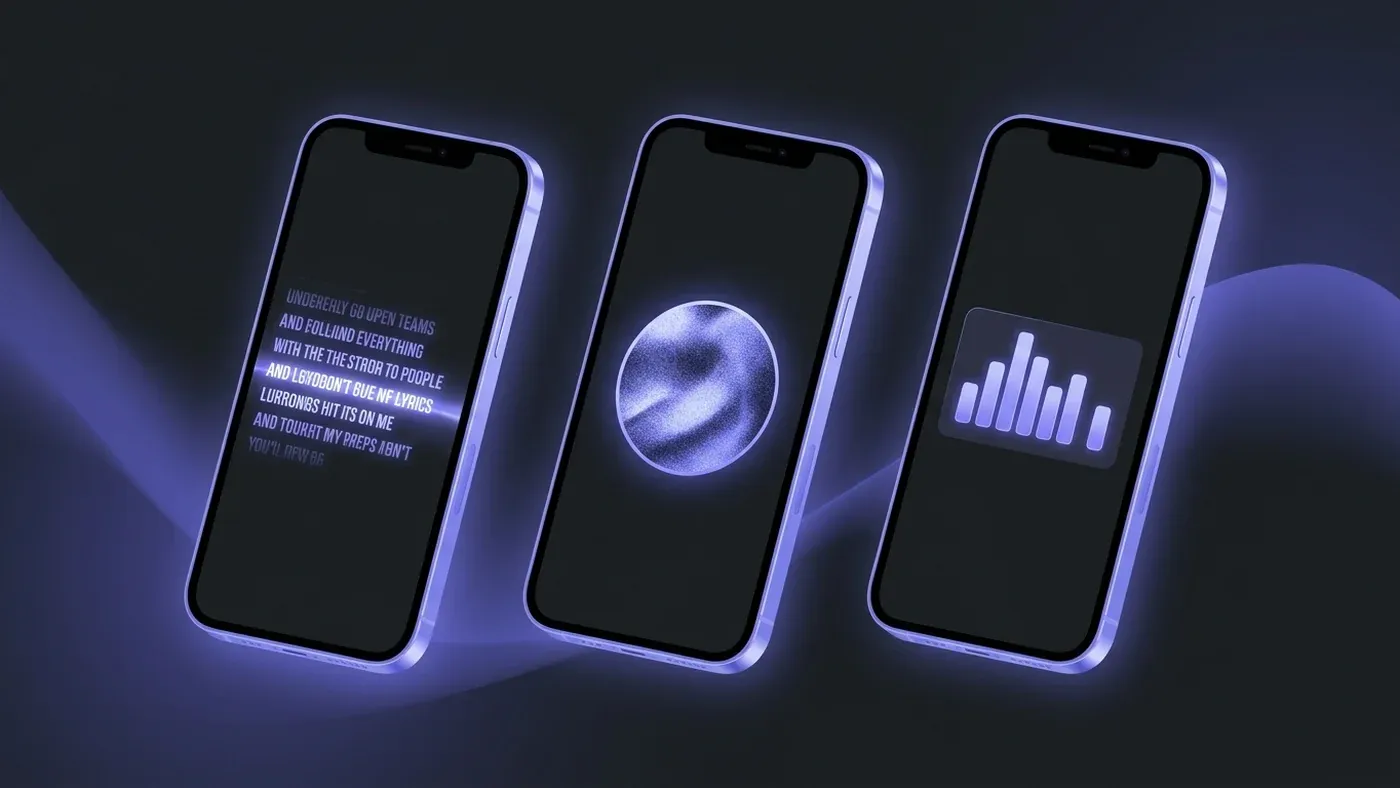
After placing the Music sticker, you can swipe through different display styles by tapping the sticker:
Lyrics view. If the track has synchronized lyrics available in Instagram’s database, you can display them as animated text that scrolls with the song in real time. The font, size, and color are customizable within a set of presets. This works well for songs with distinctive, recognizable lyrics — it invites viewers to sing along mentally or recognize the track.
Cover art view. The sticker shows the album artwork for the track, along with the song title and artist name. This is more visually substantial than the minimal view and works well if the album art itself is interesting or if you want to make the song attribution obvious.
Minimal view. A small pill-shaped element with a music note icon and the song title. It takes up very little screen space, which is useful if the music is more atmospheric than central — you want it there but you don’t want it competing with your main content.
There’s no objectively correct choice. Pick the one that fits the visual balance of your specific story.
Why Music Might Not Be Available
You’ll sometimes search for a specific song and find it’s not in the library, or you’ll see a track available in a reduced version. A few reasons this happens:
Regional licensing. Music licenses are negotiated territory by territory. A song available in the library for US accounts may be completely absent for accounts based in Germany or Japan. Instagram’s music library is not uniform globally, and there’s not much you can do about it beyond trying an alternative track.
Business account restrictions. Instagram enforces tighter music licensing rules on business accounts than on personal or creator accounts. If you have a business account and notice that music options are more limited, that’s likely why. Switching to a creator account (not a personal account) can restore access to more of the library while retaining analytics and other professional features.
Copyrighted tracks with disputes. Some songs are in the library but restricted for use in video content due to ongoing licensing disputes. These will show up in search but produce an error or silence when you try to add them. The workaround is to choose a different track.
Live audio or new releases. Very recently released music sometimes lags in appearing in the Instagram library even after it’s publicly available on streaming platforms. If a song was released in the last week or two, it may not be in the library yet.
Downloading Stories With Music
If you’ve watched an Instagram story with music and want to save it, the music track complicates things. When you download a story through a browser-based viewer, audio processing can vary — some tracks download cleanly, others are stripped because of how Instagram packages the audio in the story file.
The guide to downloading Instagram stories with music goes into the specifics of what to expect and what approaches give you the best results when the audio matters as much as the video.
FAQ
Can I add music to an Instagram story from Spotify or Apple Music?
Not natively. The Music sticker only pulls from Instagram’s own licensed library. You can’t import a specific Spotify or Apple Music track directly. However, if the song exists in Instagram’s library — which covers most mainstream releases — you can usually find it there. Search by song title or artist name.
Can I use my own original music in a story?
Yes. If you record a video with your own music playing in the background — you’re performing, your band is rehearsing, you’re playing a recording through speakers — that audio is captured as part of the video and posts as-is without going through the Music sticker. The Music sticker is specifically for Instagram’s licensed third-party library. Original audio you record yourself is treated separately and won’t trigger any music licensing restrictions.
Does adding a Music sticker affect story reach or visibility?
Instagram has indicated that stories with Music stickers can appear in certain discovery contexts — specifically, some music-browsing features within the app let users find stories tagged with particular songs. Whether this meaningfully affects reach for most accounts is unclear, but it’s not a penalty. Adding music doesn’t hurt distribution.
Why does my music story play silently for some viewers?
Viewers watching with their phone on silent will only hear story audio — including music — if they’ve manually turned up the volume during a story session. The Music sticker lyric display and cover art are visual, so silent viewers still see the sticker, but they won’t hear the track unless they unmute. This is a viewer-side setting, not something you control.
Can I use the Music sticker on Instagram Reels instead of stories?
Yes, but the interface is different. Reels have their own audio feature built into the creation flow, which you access before recording rather than adding as a sticker afterward. The music library is the same; the workflow is adapted for Reels’ longer format and audio-first structure. The Music sticker as described in this guide applies specifically to Stories.
Music is one of the few story features that genuinely changes how content is received, not just how it looks. A well-chosen track covers a lot of production sins and elevates simple photos into something viewers want to replay. And if you’ve come at this from the other direction — you saw someone else’s story with a track you want to remember — the guide to anonymously viewing stories covers how to watch and save stories without the creator knowing you were there.

View Instagram Stories Anonymously
Right in your browser, no login needed. Or get the app for unlimited viewing and downloads.
★ 4.9 · 250K+ users